
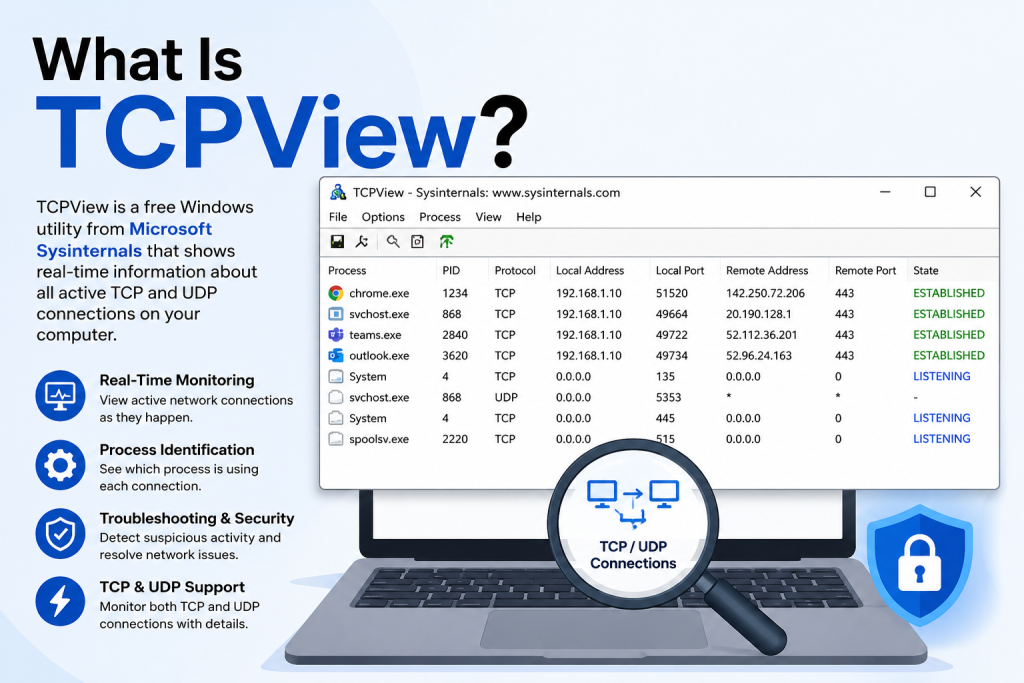
If you’ve ever wondered which applications on your computer are connecting to the internet, TCPView is a powerful tool that can provide the answers. Developed by Microsoft Sysinternals, TCPView is a lightweight network monitoring utility that helps users view detailed information about active TCP and UDP connections on Windows systems.
Whether you’re a system administrator, IT professional, developer, or simply a curious user, TCPView offers valuable insights into your computer’s network activity in real time.
Understanding TCPView
TCPView is a free Windows utility that displays a comprehensive list of all current network connections and listening ports on your computer. The program provides information about which processes are communicating over the network, the local and remote addresses involved, connection states, and the process IDs associated with each connection.
Unlike the standard Windows command-line tools, TCPView presents this information in a user-friendly graphical interface, making it easier to identify network activity at a glance.
How TCPView Works
TCPView continuously monitors network connections on your system and updates the information in real time. When a new connection is established, it appears in the list. If a connection closes, it disappears automatically.
The utility displays several important details, including:
- Process name
- Process ID (PID)
- Protocol type (TCP or UDP)
- Local address and port
- Remote address and port
- Connection status
This information allows users to quickly determine which applications are sending or receiving data over the network.
Key Features of TCPView
Real-Time Network Monitoring
One of TCPView’s most valuable features is its ability to show network activity as it happens. Users can instantly see when applications connect to remote servers or listen for incoming connections.
Easy-to-Read Interface
TCPView presents network information in a simple table format, making it much easier to understand than command-line outputs. Different connection states are highlighted, helping users identify changes quickly.
Process Identification
The tool clearly shows which process owns each network connection. This makes troubleshooting much easier when trying to identify unknown or suspicious network activity.
Connection Management
TCPView allows users to close established connections or terminate processes directly from the interface. This can be useful when investigating unwanted network traffic or resolving connectivity issues.
Detailed Connection Information
Users can access additional details about each network connection, including endpoint addresses and port numbers, providing deeper insights into network communication.
Why Use TCPView?
There are many reasons why TCPView remains popular among Windows users.
For troubleshooting network problems, TCPView helps identify applications consuming bandwidth or causing connection issues. IT professionals often use it to diagnose software conflicts and network-related errors.
From a security perspective, TCPView can reveal unauthorized or suspicious connections. If a program is communicating with an unexpected remote server, users can quickly spot the activity and investigate further.
Developers also benefit from TCPView when testing network applications. It provides a convenient way to monitor application behavior and verify network communication during development.
TCPView vs. Netstat
Many users compare TCPView with the built-in Windows Netstat command. While both tools provide network connection information, TCPView offers several advantages.
Netstat requires command-line usage and displays a static snapshot of network activity. TCPView, on the other hand, provides a continuously updated graphical interface that is easier to interpret.
Additionally, TCPView displays process names alongside network connections, making it simpler to identify which applications are responsible for specific connections.
Common Use Cases for TCPView
TCPView is useful in a variety of scenarios.
Network administrators often use it to monitor server activity and diagnose connectivity issues. Security analysts rely on it to detect unusual network behavior and investigate potential threats.
Home users may use TCPView to understand which applications are accessing the internet and to identify software that consumes excessive bandwidth.
Developers frequently use the tool during testing and debugging to verify that their applications establish and maintain network connections correctly.
Is TCPView Safe?
Yes, TCPView is considered safe and trustworthy. It is developed and maintained by Microsoft as part of the Sysinternals Suite, a collection of advanced Windows administration tools widely used by IT professionals around the world.
Because it comes directly from Microsoft, users can confidently download and use TCPView without concerns about malware or unwanted software.
How to Get Started with TCPView
Getting started with TCPView is simple. Users can download the utility from Microsoft’s Sysinternals website and run it without a complicated installation process.
Once launched, TCPView immediately begins displaying active network connections. The interface updates automatically, allowing users to monitor network activity in real time without additional configuration.
Conclusion
TCPView is a powerful yet easy-to-use network monitoring tool for Windows that provides real-time visibility into TCP and UDP connections. Its intuitive interface, detailed connection information, and process identification capabilities make it an essential utility for troubleshooting, security analysis, and network monitoring.
Whether you’re managing enterprise systems, developing network applications, or simply curious about what your computer is doing online, TCPView offers a clear and efficient way to understand your system’s network activity.