
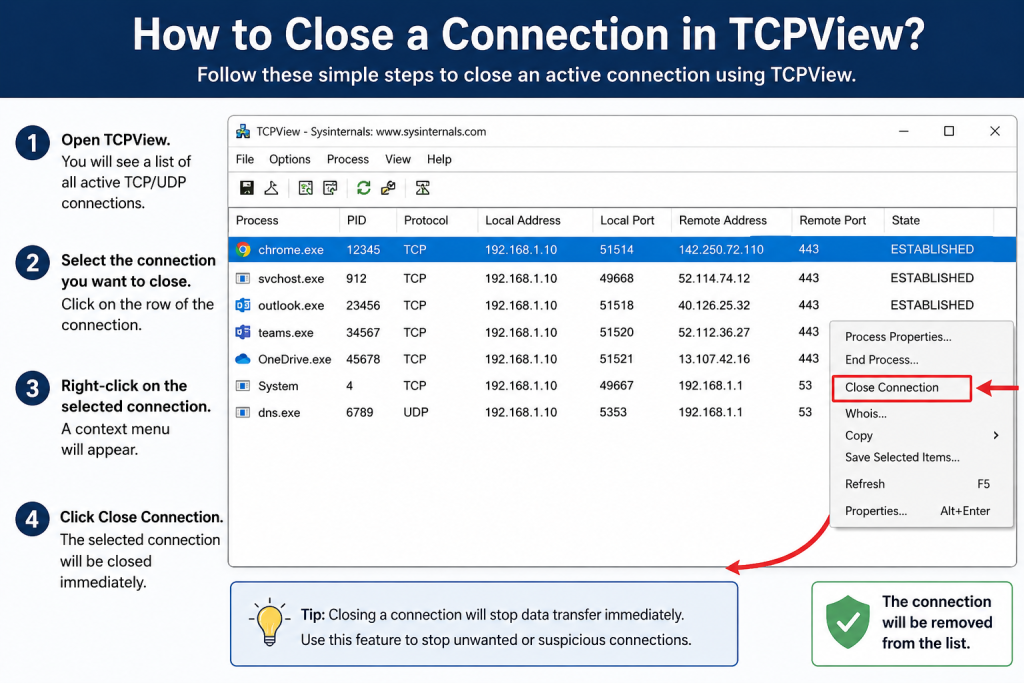
TCPView is a useful Windows network monitoring tool that helps you see active internet and network connections on your computer. If an app is connected to a remote server, using a port, or creating suspicious traffic, TCPView can help you identify it quickly. One of its most helpful features is the ability to close an active connection directly from the tool.
In this guide, you will learn how to close a connection in TCPView, when you should use this feature, what precautions to take, and how TCPView can help you troubleshoot network activity in a simple and safe way.
Read More: How to Check Open Ports on Windows Using TCPView?
What Is TCPView?
TCPView is a free Microsoft Sysinternals tool for Windows that displays active TCP and UDP endpoints on your system. In simple words, it shows which programs are using your internet or local network connection.
With TCPView, you can view details such as:
- Process name
- Process ID
- Protocol type
- Local address
- Local port
- Remote address
- Remote port
- Connection state
This makes TCPView very useful for troubleshooting network problems, checking unknown connections, finding suspicious activity, and understanding which apps are communicating online.
Why Would You Close a Connection in TCPView?
There are many reasons why you may want to close a connection in TCPView. Sometimes an application keeps a network connection open even after you stop using it. In other cases, you may notice an unknown remote address connected to your system and want to stop that connection immediately.
You may close a TCPView connection when:
- A program is using too much network bandwidth
- A connection looks suspicious or unknown
- An app is stuck while connecting to a server
- You want to test how software behaves after disconnecting
- You are troubleshooting network errors
- You want to stop an unwanted active session
Closing a connection does not always close the full program. It usually disconnects that specific active network connection. However, some apps may automatically reconnect if they are still running.
How to Close a Connection in TCPView
Closing a connection in TCPView is simple. Follow these steps carefully.
Step 1: Open TCPView
First, download and open TCPView on your Windows computer. It does not require a complicated installation. You can usually run it directly after downloading the tool.
For best results, right-click TCPView and choose Run as administrator. This gives TCPView better permission to show system-level network connections and manage active connections properly.
Step 2: Find the Connection You Want to Close
Once TCPView opens, you will see a list of active network connections. The list may update automatically every second, so some connections may appear and disappear quickly.
Look at the following columns:
- Process: Shows the app or service using the connection
- Local Address: Shows your computer’s local network address
- Local Port: Shows the port used on your computer
- Remote Address: Shows the external or remote server
- Remote Port: Shows the port used by the remote server
- State: Shows the current connection status
To close a connection, look for a connection with the state ESTABLISHED. This means the connection is currently active.
Step 3: Right-Click the Connection
After finding the connection, right-click on it. A small menu will appear with different options.
Choose Close Connection or Close Connections, depending on the TCPView version you are using.
TCPView will then attempt to close that selected connection.
Step 4: Confirm the Connection Is Closed
After closing the connection, watch the TCPView window for a few seconds. TCPView highlights changing connections, so the closed connection may disappear from the list or change its state.
If the same connection appears again, it may mean the application automatically reconnected. In that case, closing the connection alone may not be enough. You may need to close the application, stop the service, or block the connection using Windows Firewall.
Alternative Method: Use the File Menu
You can also close a connection from the top menu.
Select the connection you want to close, then go to:
File > Close Connections
This works the same way as the right-click method. The right-click method is usually faster, but both options are useful.
Important Things to Know Before Closing a Connection
Closing connections in TCPView is powerful, but you should use it carefully. Some connections belong to important Windows services, antivirus tools, browsers, cloud storage apps, or system processes.
Before closing a connection, check:
- Which process owns the connection
- Whether the process name looks familiar
- Whether the remote address is trusted
- Whether the connection belongs to an important app
- Whether closing it could interrupt downloads, updates, or online work
For example, if you close a connection used by your browser, a webpage may stop loading. If you close a connection used by cloud storage, file syncing may pause. If you close a connection used by a security tool, it may affect protection or updates.
Does Closing a Connection Stop the Program?
Not always. Closing a connection usually stops only the selected network session. The program itself may continue running.
For example, if you close a browser connection, the browser will stay open. If the website is still active, the browser may create a new connection again. Similarly, messaging apps, game launchers, VPN clients, and cloud tools may reconnect automatically.
If you want to stop the app completely, you may need to close the program normally or use Task Manager. TCPView may also show an option to end the related process, but you should only use that if you are sure the process is safe to stop.
TCPView Close Connection vs End Process
Many beginners confuse closing a connection with ending a process. These are different actions.
| Action | What It Does | Best Used For |
|---|---|---|
| Close Connection | Disconnects a selected network connection | Stopping one active connection |
| End Process | Stops the full program or service | Closing an app completely |
| Block in Firewall | Prevents future connections | Long-term blocking |
If you only want to disconnect one session, use Close Connection. If the program keeps reconnecting and you no longer want it running, close the app or manage it through Task Manager. If you want to stop future access, use Windows Firewall.
What If the Connection Comes Back?
Sometimes, after you close a connection in TCPView, it appears again. This is normal for many modern applications. Browsers, update services, antivirus tools, cloud apps, and chat programs often reconnect automatically.
If the connection comes back repeatedly, try these steps:
- Identify the process name in TCPView.
- Check whether the program is trusted.
- Close the program if you do not need it.
- Disable unnecessary startup apps.
- Scan your system with antivirus software if the connection looks suspicious.
- Use Windows Firewall to block unwanted traffic.
TCPView is good for temporary connection control, but firewall rules are better for permanent blocking.
Is It Safe to Close Connections in TCPView?
Yes, it is generally safe if you know what you are closing. However, closing random connections without checking them can interrupt apps, downloads, meetings, games, or system services.
To stay safe, avoid closing connections from:
- Windows system processes
- Antivirus or security tools
- VPN software
- Active browser sessions
- Cloud backup tools
- Important work applications
If a connection looks suspicious, search the process name first or scan your computer before taking stronger action.
When Should You Use TCPView?
TCPView is useful for many common troubleshooting tasks. You can use it when your internet feels slow, an unknown app is using the network, or you want to check which servers your computer is connecting to.
TCPView is especially helpful for:
- Finding active network connections
- Checking open ports
- Detecting unknown remote addresses
- Troubleshooting app connection issues
- Monitoring suspicious network behavior
- Closing unwanted established connections
For Windows users, TCPView is one of the easiest tools for viewing real-time network activity without using complicated commands.
Best Practices for Closing Connections in TCPView
To use TCPView properly, follow these best practices:
- Run TCPView as administrator
- Sort connections by process name or state
- Focus on ESTABLISHED connections
- Check the process name before closing anything
- Avoid closing unknown system processes randomly
- Use antivirus scanning for suspicious activity
- Use Windows Firewall for long-term blocking
- Restart the app if closing a connection causes issues
These simple habits can help you use TCPView safely and effectively.
Common Problems When Closing Connections in TCPView
The Close Connection Option Is Not Working
If TCPView does not close the connection, try running it as administrator. Some system-level connections may need elevated permissions.
The Connection Reappears Again
This usually means the app automatically created a new connection. Close the app or block it using firewall rules if needed.
I Cannot Identify the Remote Address
Some remote addresses may belong to cloud servers, content delivery networks, or app services. You can use a WHOIS lookup or search the process name to learn more.
The App Stops Working After Closing the Connection
This is expected if the app needed that connection. Reopen the app or refresh the service to reconnect.
Conclusion
Closing a connection in TCPView is a quick way to stop an active network session on Windows. You simply open TCPView, find the ESTABLISHED connection, right-click it, and choose Close Connection. This can help with troubleshooting, stopping suspicious activity, or testing network behavior.
However, TCPView should be used carefully. Always check the process name and connection details before closing anything. If a connection keeps coming back, the related app may be reconnecting automatically, and you may need to close the app or use Windows Firewall for permanent control.
TCPView is a simple but powerful tool for understanding and managing network connections on Windows, especially when you want clear real-time information without using complex command-line tools.