
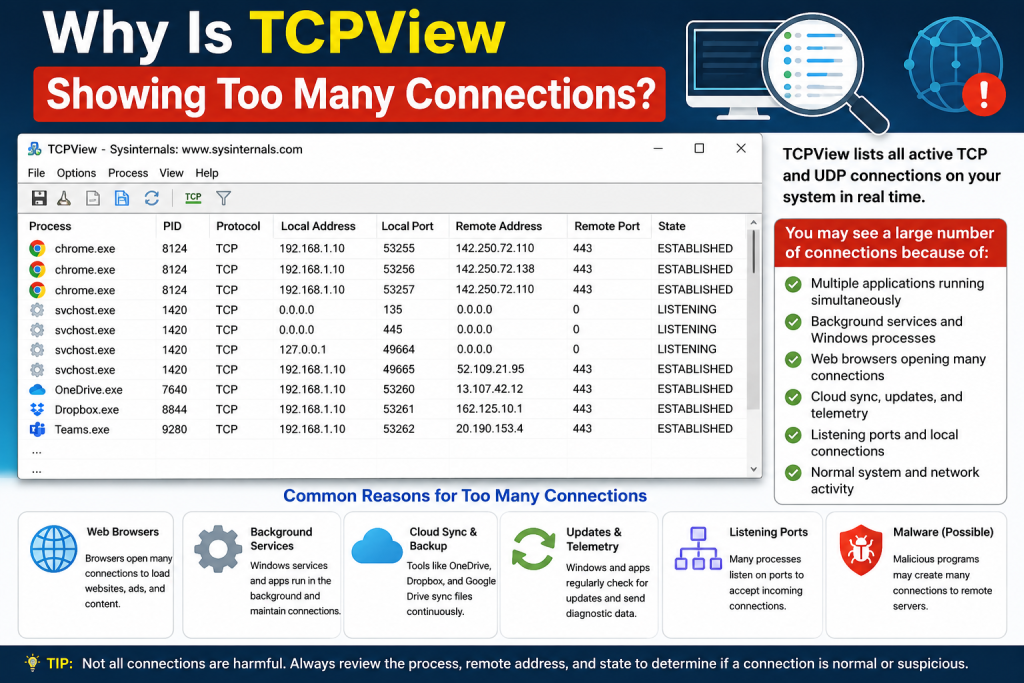
TCPView is a useful Windows networking tool that shows all active TCP and UDP connections on your computer. It helps you see which apps, services, and processes are communicating over the internet or local network. But many users get confused when TCPView suddenly shows too many connections at once.
Seeing a long list of connections in TCPView does not always mean something is wrong. In many cases, it is normal because modern apps, browsers, Windows services, antivirus tools, cloud sync apps, and background updates all create network connections. However, too many unknown or suspicious connections can also point to unwanted programs, malware, browser extensions, or misconfigured software.
Read More: How to Close a Connection in TCPView?
What Does TCPView Show?
TCPView is a Microsoft Sysinternals tool that displays real-time network activity on Windows.
It shows active connections along with useful details such as:
- Process name
- Process ID
- Local address
- Remote address
- Local port
- Remote port
- Connection state
- Protocol type
This information helps you understand which program is using your internet connection.
For example, when you open a browser like Chrome, Edge, or Firefox, TCPView may show many connections because websites load images, ads, scripts, videos, fonts, analytics, and background services from different servers.
Why Is TCPView Showing Too Many Connections?
TCPView may show too many connections because many applications and Windows services communicate in the background. Every open website, running app, update service, cloud tool, messaging app, or security program can create multiple network connections.
This is especially common when you have several browser tabs open or background apps running. Each connection appears separately in TCPView, so the list can look crowded even when everything is normal.
Common Reasons TCPView Shows Many Connections
Multiple Browser Tabs Are Open
Web browsers are one of the biggest reasons TCPView shows too many connections. A single website can connect to many different servers for content delivery, ads, tracking scripts, videos, images, login systems, and security checks.
If you open multiple tabs, TCPView may show dozens or even hundreds of browser-related connections.
For example, connections from:
- chrome.exe
- msedge.exe
- firefox.exe
- brave.exe
are usually normal if you are browsing the internet.
Windows Services Are Running in the Background
Windows constantly communicates with Microsoft servers for updates, security checks, time sync, activation, account services, and cloud features. These background connections can appear in TCPView even when you are not actively using any app.
Common Windows-related processes include:
- svchost.exe
- System
- lsass.exe
- services.exe
- SearchHost.exe
Some of these are normal system processes, but you should still check them carefully if they connect to unknown or suspicious remote addresses.
Cloud Sync Apps Are Active
Cloud storage apps often create many connections because they continuously sync files, check changes, upload data, and download updates.
Examples include:
- OneDrive
- Google Drive
- Dropbox
- iCloud
- MegaSync
If you recently added files, edited documents, or started your PC after a long time, these apps may create more connections than usual.
Antivirus or Firewall Software Is Scanning Traffic
Security tools may also create multiple connections while checking websites, scanning downloads, updating virus definitions, or monitoring network activity.
This is usually normal behavior. Antivirus tools often connect to their own servers to verify files, update databases, or scan suspicious web traffic.
If TCPView shows connections from your antivirus process, check whether the remote address belongs to the security provider.
Apps Are Updating Automatically
Many programs update silently in the background. Software like browsers, game launchers, communication apps, drivers, and productivity tools may connect to update servers without asking every time.
Common examples include:
- Steam
- Discord
- Zoom
- Microsoft Teams
- Adobe apps
- NVIDIA or AMD software
- Browser update services
These updates can temporarily increase the number of connections in TCPView.
Messaging and Social Apps Stay Connected
Apps like WhatsApp Desktop, Telegram, Discord, Skype, Slack, and Teams keep persistent connections open so they can deliver messages and notifications instantly.
These connections may stay active even when the app is minimized. TCPView shows them because they are still communicating with remote servers.
Some Connections Are in TIME_WAIT State
One common reason TCPView looks crowded is the TIME_WAIT state. This state appears after a connection closes but Windows keeps it visible for a short time before removing it completely.
TIME_WAIT connections are usually normal. They do not always mean an app is actively sending or receiving data. They are part of how TCP connections close safely.
Background Extensions or Browser Add-ons Are Active
Browser extensions can create their own network connections. Some extensions check updates, load ads, track analytics, sync settings, or communicate with third-party services.
If TCPView shows too many browser connections even with only one tab open, your extensions may be the reason.
You can test this by disabling extensions one by one and watching TCPView again.
Malware or Unwanted Programs May Be Running
While many connections are normal, too many unknown connections can sometimes be a warning sign. Malware, adware, spyware, crypto miners, and unwanted programs may connect to remote servers in the background.
Warning signs include:
- Unknown process names
- Random executable files
- Connections to strange remote IP addresses
- High network usage when no app is open
- Processes running from temporary folders
- Apps you do not remember installing
- Repeated connections to suspicious domains
If you notice these signs, you should investigate further.
How to Check If TCPView Connections Are Safe
Check the Process Name
Start by looking at the process name. If the connection belongs to a known app like your browser, OneDrive, antivirus, or Windows service, it may be normal.
If the process name looks random or unfamiliar, search for it carefully.
Examples of suspicious-looking names may include random letters, misspelled system files, or executables running from unusual folders.
Check the Process Location
In TCPView, you can right-click a process and open its properties or related location.
Safe programs usually run from trusted folders such as:
C:\Windows\System32C:\Program FilesC:\Program Files (x86)
Be careful if a process runs from:
TempAppData\RoamingDownloads- Unknown folders
- Randomly named directories
A strange file location does not always prove malware, but it is a strong reason to investigate.
Check the Remote Address
The remote address shows where the process is connecting. Some addresses belong to trusted services like Microsoft, Google, Cloudflare, Amazon AWS, or your antivirus provider.
However, if the remote address looks suspicious or belongs to an unknown server, you should check it further using a trusted IP lookup or security scanner.
Look at the Connection State
TCPView shows different connection states. Some common states include:
| State | Meaning |
|---|---|
| ESTABLISHED | Active connection is open |
| LISTENING | App is waiting for incoming connections |
| TIME_WAIT | Recently closed connection |
| CLOSE_WAIT | Remote side closed, local app has not fully closed |
| SYN_SENT | App is trying to connect |
A few ESTABLISHED connections are normal. Many TIME_WAIT connections are also common after browsing or downloading. But unknown LISTENING ports should be checked more carefully.
Close Apps and Watch TCPView
A simple way to test connections is to close apps one by one and watch TCPView.
For example:
- Close your browser.
- Close cloud sync apps.
- Close messaging apps.
- Pause downloads or updates.
- Refresh TCPView.
If the number of connections drops, the closed app was likely responsible.
Restart Your Computer
Sometimes old connections, stuck services, or temporary background tasks can make TCPView look crowded. Restarting your computer clears many temporary network states and gives you a cleaner view.
After restarting, open TCPView before launching many apps. This helps you see which connections start automatically.
Scan Your PC for Malware
If you still see many unknown connections, run a full security scan. Use Windows Security or a trusted antivirus tool.
You should also check:
- Startup apps
- Recently installed programs
- Browser extensions
- Scheduled tasks
- Unknown services
This can help you find unwanted programs that may be creating hidden connections.
Is It Normal for TCPView to Show Many Connections?
Yes, it is normal for TCPView to show many connections, especially when you are using a web browser, cloud apps, messaging tools, or Windows update services. Modern software depends heavily on online communication, so multiple connections are expected.
However, it is not normal if you see many unknown processes, strange remote addresses, or constant network activity when your computer is idle.
The key is not just the number of connections. The important thing is which processes are creating them and where they are connecting.
When Should You Be Concerned?
You should pay attention if TCPView shows:
- Unknown apps making repeated connections
- High network activity while idle
- Processes with random names
- Connections from suspicious folders
- Unknown LISTENING ports
- Remote IPs from unusual locations
- Connections that return after closing apps
- Browser connections even when no browser is open
These signs do not always confirm malware, but they are worth checking.
How to Reduce Too Many TCPView Connections
You can reduce unnecessary connections by:
- Closing unused browser tabs
- Removing unwanted browser extensions
- Disabling unnecessary startup apps
- Pausing cloud sync when not needed
- Uninstalling unused software
- Keeping Windows and apps updated
- Running regular malware scans
- Blocking suspicious apps with a firewall
This will not remove all connections, but it can make TCPView easier to read and improve overall system performance.
Conclusion
TCPView showing too many connections is usually not a problem by itself. Most connections come from browsers, Windows services, cloud apps, antivirus tools, updates, and messaging programs. Modern computers are constantly communicating with online services, so a long TCPView list is common.
The real concern starts when the connections come from unknown processes, suspicious folders, strange remote addresses, or apps you did not install. By checking the process name, file location, remote address, and connection state, you can understand whether the activity is normal or risky.
TCPView is a powerful tool, but it is most useful when you focus on patterns instead of just the number of connections. If something looks suspicious, close apps, restart your PC, check startup programs, and run a full malware scan.