
TCPView is a lightweight Windows networking tool that helps users see what is happening behind the scenes on their computer’s network connections. If you have ever wondered which programs are using the internet, which remote servers your system is connecting to, or why a certain port is open, TCPView makes that information easier to understand.
Instead of using complicated command-line tools, TCPView gives you a clear visual list of active TCP and UDP connections. It shows the process name, local address, remote address, port number, protocol, and connection status in real time. This makes it useful for beginners, system administrators, IT support teams, and security-conscious users who want a simple way to monitor network activity.
Read More: What Is TCPView?
What Is TCPView?
TCPView is a free network monitoring utility for Windows. It is part of Microsoft Sysinternals, a collection of advanced tools designed to help users troubleshoot, analyze, and manage Windows systems.
The main purpose of TCPView is to display active network endpoints on your computer. In simple words, it shows which applications are communicating over the network. For example, your browser, email app, cloud storage software, game launcher, or background Windows service may all create network connections. TCPView helps you see those connections clearly.
How Does TCPView Work?
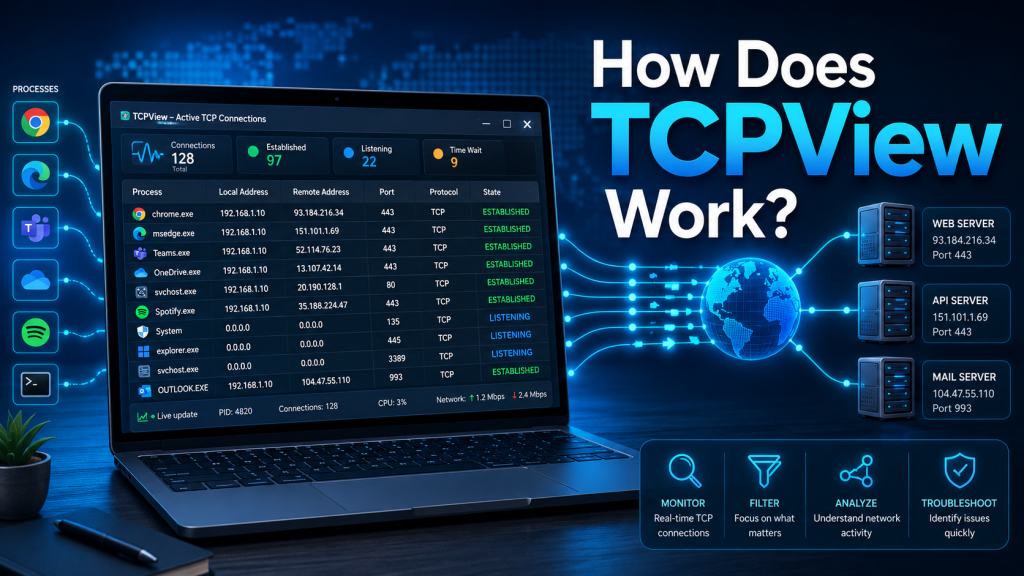
TCPView works by scanning your Windows system for active TCP and UDP endpoints. When you open the tool, it collects network connection details from the operating system and displays them in a live table.
Each row in TCPView represents a network endpoint or connection. The tool then connects that network activity to the process that owns it. This is one of the most helpful features because it does not only show that a connection exists; it also shows which program is responsible for it.
For example, if a browser connects to a website, TCPView can show the browser process, the local port used by your computer, the remote server address, and the current connection state. This helps users understand network behavior without needing deep technical knowledge.
What Information Does TCPView Show?
TCPView displays several important details about each connection. These details help users identify, understand, and troubleshoot network activity.
Process Name
The process name tells you which application or service owns the connection. This is useful because you can quickly see whether the connection belongs to a trusted program or something unfamiliar.
For example, you may see processes like:
- chrome.exe
- msedge.exe
- svchost.exe
- outlook.exe
- OneDrive.exe
If you notice an unknown process making many connections, you may want to investigate it further.
Protocol
TCPView shows whether the endpoint is using TCP or UDP.
TCP is commonly used for reliable communication, such as web browsing, email, file transfers, and secure connections. UDP is often used for faster communication where speed matters more than guaranteed delivery, such as video calls, online gaming, DNS requests, and streaming.
Local Address
The local address shows the IP address and port on your own computer. This helps you understand which network interface and port your system is using.
In many cases, you may see your private IP address, such as 192.168.x.x, or a loopback address such as 127.0.0.1.
Remote Address
The remote address shows the external computer, server, or domain your system is communicating with. This can help you identify where a program is sending or receiving data.
TCPView may also resolve IP addresses into domain names, making the information easier to read.
Connection State
For TCP connections, TCPView shows the connection state. Common states include:
- LISTENING
- ESTABLISHED
- TIME_WAIT
- CLOSE_WAIT
- SYN_SENT
These states help explain what the connection is currently doing. For example, “ESTABLISHED” means an active connection is open, while “LISTENING” means a program is waiting for incoming connections.
Why TCPView Is Easier Than Netstat
Windows already includes a command-line tool called Netstat, which can also show network connections. However, TCPView is easier for many users because it provides a graphical interface.
With TCPView, you do not need to type commands or remember special options. You can open the tool and immediately see live network activity in a clean table. This makes it more beginner-friendly and faster for visual troubleshooting.
TCPView is especially helpful when you want to quickly answer questions like:
- Which program is using the internet right now?
- Why is a port open on my computer?
- What remote server is this app connecting to?
- Is an unknown process making suspicious connections?
- Which application owns a specific TCP or UDP endpoint?
How TCPView Updates Network Activity
TCPView refreshes its list automatically, so you can watch connections appear and disappear in real time. This is useful because network activity changes constantly.
For example, when you open a website, your browser may create several new connections. When you close the tab or the connection ends, those entries may disappear or change state. TCPView helps you observe this activity as it happens.
This real-time behavior makes TCPView useful for troubleshooting slow internet, checking background apps, and identifying unusual network behavior.
What Do the Colors Mean in TCPView?
TCPView uses colors to make changes easier to notice. While the exact color behavior may depend on the version, the tool commonly highlights new, changed, or closed connections.
This visual system helps users quickly spot fresh activity. Instead of carefully reading every row, you can notice changes as they happen. This is especially helpful when monitoring a program after opening it or when checking whether an app is making unexpected network connections.
How TCPView Helps With Troubleshooting
TCPView is very useful for troubleshooting network-related issues. If an app is not working correctly, you can use TCPView to check whether it is creating connections.
For example, if a program cannot connect to the internet, TCPView can help you see whether the program is trying to connect at all. If it shows no connection, the issue may be with the app, firewall, or network configuration. If it shows repeated failed connections, the remote server, DNS, or security settings may be involved.
TCPView can also help when a port is already in use. If you are trying to run a local server and the port is blocked or occupied, TCPView can show which process is using that port.
How TCPView Helps With Security
TCPView is not a full antivirus or firewall, but it can help users notice suspicious network activity. If an unknown process is connecting to strange remote addresses, that may be a sign that something needs attention.
Security professionals and advanced users often use tools like TCPView to inspect active connections and identify unusual behavior. For everyday users, it can provide a quick way to check which programs are communicating online.
However, it is important not to assume every unknown connection is dangerous. Many Windows services and legitimate apps connect to remote servers for updates, syncing, license checks, notifications, and cloud features.
Can TCPView Close Connections?
Yes, TCPView allows users to close selected TCP connections. This can be helpful when a connection is stuck, unwanted, or linked to a program you are troubleshooting.
However, closing a connection should be done carefully. If you close a connection used by an important program, that app may stop working properly until it reconnects. For example, closing a connection used by a browser, cloud sync tool, or remote work app may interrupt its activity.
TCPView may also allow users to end a process, but this should only be done when you are sure the process is safe to close.
TCPView and Tcpvcon
TCPView also comes with Tcpvcon, a command-line version of the tool. Tcpvcon is useful for advanced users, scripts, and system administrators who prefer terminal-based output.
The graphical TCPView tool is better for users who want a visual interface, while Tcpvcon is useful when automation or command-line access is needed.
Common Uses of TCPView
TCPView can be used for many practical tasks. Some of the most common uses include:
Checking Active Internet Connections
You can open TCPView to see which apps are currently connected to the internet. This helps you understand background activity on your computer.
Finding the Program Using a Port
If a port is already occupied, TCPView can help you identify the process using it. This is useful for developers, server admins, and users running local tools.
Investigating Unknown Connections
If you notice unusual network activity, TCPView can help you check which process is responsible and where it is connecting.
Troubleshooting App Connectivity
When an app cannot connect, TCPView can show whether it is attempting to make a connection and what state that connection is in.
Monitoring Background Services
Many Windows services communicate in the background. TCPView helps you see these services and understand their network behavior.
Is TCPView Safe to Use?
TCPView is safe when downloaded from the official Microsoft Sysinternals source. It is a portable utility, which means it does not require a complex installation process. You can run it directly and use it to inspect network activity.
As with any system tool, users should be careful when closing connections or ending processes. Viewing network activity is safe, but stopping processes without understanding them can affect system performance or app behavior.
Who Should Use TCPView?
TCPView is useful for different types of users:
Beginners can use it to understand which apps are using the internet. IT support teams can use it to troubleshoot connection issues. Developers can use it to check ports and local connections. Security-focused users can use it to look for unusual network activity.
Because it presents technical network data in a visual format, TCPView is easier to use than many command-line alternatives.
Benefits of Using TCPView
TCPView offers several clear benefits:
- It shows real-time TCP and UDP activity.
- It links connections to process names.
- It displays local and remote addresses.
- It helps identify open ports.
- It provides a simple graphical interface.
- It can help troubleshoot app and network problems.
- It is lightweight and portable.
- It is useful for both beginners and advanced users.
Limitations of TCPView
TCPView is powerful, but it also has limits. It does not replace a firewall, antivirus, packet analyzer, or full network security platform. It shows active connections, but it does not deeply inspect the contents of network traffic.
For advanced packet-level analysis, tools like Wireshark may be more suitable. For malware protection, users should still rely on trusted security software. TCPView is best used as a visibility and troubleshooting tool.
Conclusion
TCPView works by showing active TCP and UDP endpoints on a Windows computer and linking each connection to the process that owns it. It helps users understand which programs are using the network, what remote addresses they are connecting to, and what state each connection is in.
For anyone who wants a simple way to monitor network activity, troubleshoot connection problems, identify open ports, or inspect suspicious connections, TCPView is a very useful tool. It gives you a clearer view of your system’s network behavior without requiring complex commands or advanced networking knowledge.