
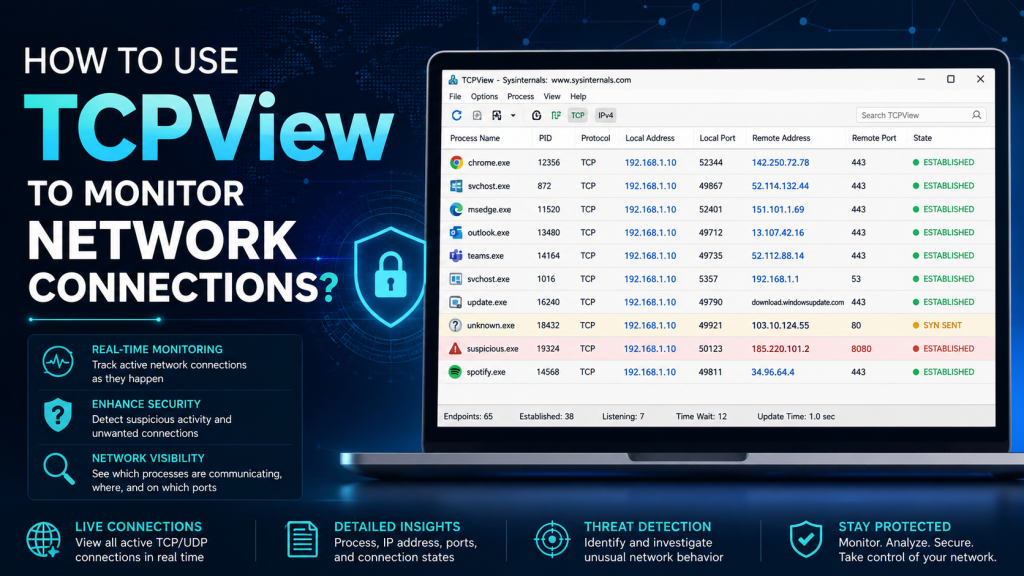
Monitoring network connections is important when you want to understand what your computer is doing online. Sometimes an app may connect to the internet in the background, a browser may open multiple connections, or an unknown process may communicate with a remote server. This is where TCPView becomes useful.
TCPView is a free Windows utility from Microsoft Sysinternals that helps you view active network connections in real time. It shows which programs are using the network, what IP addresses they are connecting to, and what state each connection is in. In this guide, you will learn how to use TCPView to monitor network connections in a simple and beginner-friendly way.
Read More: How Does TCPView Work?
What Is TCPView?
TCPView is a lightweight network monitoring tool for Windows. It gives you a live view of TCP and UDP endpoints on your system. In simple words, it helps you see which applications are connected to the internet or local network.
Instead of using complex command-line tools, TCPView provides a clear graphical interface. You can quickly check the process name, local address, remote address, port number, and connection status. This makes it useful for beginners, IT users, system administrators, and anyone who wants better control over network activity.
Why Use TCPView to Monitor Network Connections?
TCPView is helpful because it shows network activity in real time. You can use it to understand normal connections, find suspicious activity, troubleshoot internet issues, and check which app is using your network.
Here are some common reasons to use TCPView:
- To see which programs are connected to the internet
- To identify unknown or suspicious network activity
- To troubleshoot slow internet or connection problems
- To check local and remote IP addresses
- To monitor open ports on your Windows computer
- To close unwanted network connections
- To compare active connections before and after opening an app
For example, if your internet feels slow, TCPView can help you check whether a background app is making many connections. If you see an unknown process connecting to a strange remote address, you can investigate it further.
How to Download TCPView Safely
To use TCPView safely, download it from the official Microsoft Sysinternals website. Avoid downloading it from unknown third-party websites because modified or bundled files can create security risks.
TCPView usually comes as a small ZIP file. After downloading it, you can extract the file and run the tool directly. It does not require a full installation like many other Windows programs.
How to Open TCPView on Windows
After downloading TCPView, follow these steps:
- Extract the downloaded ZIP file.
- Open the extracted folder.
- Right-click on TCPView.
- Choose Run as administrator.
- Accept the license agreement if it appears.
- Wait for the connection list to load.
Running TCPView as administrator is recommended because it can show more complete process and connection details. Without administrator permission, some system-level information may not appear correctly.
Understanding the TCPView Interface
When TCPView opens, you will see a table with many rows. Each row represents a network endpoint or connection. At first, the information may look technical, but it becomes easy once you understand the main columns.
Process Name
The process name tells you which program owns the connection. For example, you may see names like:
- chrome.exe
- msedge.exe
- svchost.exe
- outlook.exe
- teams.exe
- firefox.exe
This column is very useful because it helps you connect network activity to a specific application.
PID
PID stands for Process ID. It is a unique number assigned to each running process in Windows. If two processes have similar names, the PID helps you identify the exact one.
You can also compare the PID with Task Manager to confirm which program is using the connection.
Protocol
This column shows whether the connection uses TCP or UDP.
TCP is commonly used for web browsing, email, file transfers, and many reliable connections. UDP is often used for streaming, gaming, DNS requests, and faster communication where constant confirmation is not required.
Local Address
The local address shows your computer’s address and port used for the connection. It may display your local IP address or a loopback address such as 127.0.0.1.
Local Port
The local port is the port number used on your computer. Ports help Windows manage different network connections at the same time.
Remote Address
The remote address shows the outside IP address or hostname your computer is communicating with. This can be a website server, cloud service, update server, or another network device.
Remote Port
The remote port shows the port used by the remote server.
Common examples include:
- 80 for HTTP
- 443 for HTTPS
- 53 for DNS
- 25, 465, or 587 for email-related connections
State
The state column shows the current status of a TCP connection. This helps you understand whether the connection is active, waiting, closing, or already finished.
Common TCPView Connection States
TCPView may show different connection states. Here are the most common ones explained in simple words.
Established
This means the connection is active. Your computer and the remote server are currently communicating.
Listening
This means a program is waiting for incoming connections. Some services need to listen on ports to work properly.
Time Wait
This means the connection has recently closed but Windows is keeping it for a short time before fully removing it. Seeing Time Wait entries is usually normal.
Close Wait
This means the remote side has closed the connection, but the local application has not fully closed it yet. A few Close Wait entries can be normal, but many of them may indicate an application issue.
Syn Sent
This means your computer is trying to start a connection with a remote server. If it stays for too long, the remote server may not be responding.
How to Monitor Network Connections with TCPView
To monitor network connections using TCPView, simply open the tool and watch the list update in real time. New connections will appear as apps access the internet, and closed connections will disappear or change status.
A good way to use TCPView is to start with a clean observation:
- Close unnecessary apps.
- Open TCPView.
- Watch the current connections.
- Open the app you want to test.
- Check which new connections appear.
- Review the process name, remote address, and connection state.
This method helps you clearly understand which app is creating new connections.
How to Identify Which App Is Using the Internet
TCPView makes it easy to find which app is using the network. Look at the Process column and check the active connections under each process.
For example, if you open a browser, you may see many connections under chrome.exe, msedge.exe, or firefox.exe. This is normal because modern websites load content from different servers, including images, scripts, ads, analytics, and security services.
If you see an app you do not recognize, do not panic immediately. First, search the process name, check its file location, and confirm whether it belongs to Windows, a trusted program, or something suspicious.
How to Check Remote IP Addresses in TCPView
The remote address column helps you see where your computer is connecting. Some entries may show domain names, while others may show IP addresses.
If you see an unfamiliar remote address, you can investigate it by:
- Searching the IP address online
- Checking whether it belongs to a trusted company
- Looking at the process using that connection
- Checking the file location of the process
- Running a security scan if the process looks suspicious
Remember that many legitimate apps connect to cloud servers, content delivery networks, update servers, and security services. An unknown IP address does not always mean something dangerous.
How to Use TCPView for Troubleshooting
TCPView is very useful for troubleshooting network problems. If an application cannot connect to the internet, TCPView can show whether it is trying to connect or not.
For example, if a program is stuck on loading, you can open TCPView and check whether that program has an active connection. If it shows Syn Sent for a long time, the connection attempt may be failing. If there is no connection at all, the application may not be reaching the network.
TCPView can also help when you suspect a program is using too many connections. Some apps may create repeated connections due to syncing, updates, or errors. By watching TCPView, you can identify which process is responsible.
How to Close a Connection in TCPView
TCPView allows you to close a selected TCP connection. This can be useful if a connection is stuck or if you want to stop a specific network session without closing the entire application.
To close a connection:
- Open TCPView as administrator.
- Right-click the connection you want to close.
- Select Close Connection.
- Watch the list update.
Be careful when closing connections. Closing important system or application connections may interrupt downloads, calls, updates, or active sessions. If you are not sure what a connection does, it is better to investigate first.
How to End a Process from TCPView
TCPView may also allow you to end the process that owns a connection. This is stronger than closing a connection because it stops the entire program.
Use this option carefully. Ending a system process or important application may cause errors, data loss, or temporary system issues.
Before ending a process, ask yourself:
- Do I recognize this process?
- Is it a system process?
- Is it currently saving, syncing, or downloading something?
- Can I close the app normally instead?
In most cases, it is safer to close the application manually instead of killing the process directly.
How to Spot Suspicious Network Activity
TCPView can help you notice suspicious behavior, but it does not automatically tell you whether something is malware. You need to review the details carefully.
Here are signs that may need further checking:
- Unknown process name
- Process running from a strange folder
- Repeated connections to unfamiliar remote addresses
- Connections appearing even when no apps are open
- Unusual listening ports
- Many failed connection attempts
- A process using the network without a clear reason
If you find something suspicious, check the file location, scan the file with Windows Security or another trusted antivirus, and search the process name from reliable sources.
TCPView vs Netstat
Windows already includes a command-line tool called Netstat. It can also show network connections, but TCPView is easier for many users because it has a graphical interface.
TCPView is better for users who want a live, visual, and simple way to monitor connections. Netstat is better for users who prefer commands, scripts, or terminal-based troubleshooting.
Both tools are useful, but TCPView is usually more beginner-friendly.
Best Practices for Using TCPView
To get better results from TCPView, follow these simple tips:
- Run TCPView as administrator for more complete details.
- Close extra apps before monitoring a specific program.
- Focus on process names first, then check remote addresses.
- Do not assume every unknown IP is dangerous.
- Be careful before closing connections or ending processes.
- Use Task Manager together with TCPView for better analysis.
- Keep Windows and security tools updated.
- Download TCPView only from the official Microsoft Sysinternals source.
These practices help you monitor network connections safely and accurately.
Common Mistakes to Avoid
Many beginners make quick assumptions when using TCPView. Avoid these mistakes:
Thinking Every Unknown IP Is Malware
Many trusted services use cloud servers and CDNs. Unknown IP addresses can belong to normal apps, websites, updates, or background services.
Closing Random Connections
Closing connections without understanding them can break downloads, browser sessions, app syncing, or system services.
Ignoring the Process Name
The process name is one of the most important details in TCPView. Always check which program owns the connection before judging the remote address.
Not Running as Administrator
Without admin permission, TCPView may not show complete information. Running it as administrator gives better visibility.
Downloading from Untrusted Sources
Always download TCPView from Microsoft Sysinternals. This reduces the risk of fake or modified files.
Is TCPView Safe to Use?
Yes, TCPView is safe when downloaded from the official Microsoft Sysinternals website. It is a monitoring utility, not a hacking tool. It helps you view and manage network connections on your own Windows computer.
However, like any system utility, you should use it carefully. Closing connections or ending processes without understanding them can interrupt normal computer activity.
Who Should Use TCPView?
TCPView is useful for many types of users, including:
- Beginners who want to see which apps are online
- Students learning about networking
- IT support users troubleshooting connectivity
- Security-conscious users checking suspicious activity
- Developers testing app connections
- Windows users who want more visibility over network traffic
You do not need to be a network expert to use TCPView. Once you understand the basic columns, it becomes a simple and powerful tool.
Conclusion
TCPView is one of the easiest tools for monitoring network connections on Windows. It shows active TCP and UDP endpoints, process names, local addresses, remote addresses, ports, and connection states in real time. This makes it useful for troubleshooting, checking background activity, and understanding how your computer communicates over the network.
If you want a simple way to monitor network connections without using complicated commands, TCPView is a great option. Start by running it as administrator, watch which processes create connections, and investigate anything that looks unusual. With careful use, TCPView can help you better understand and control your Windows network activity.