
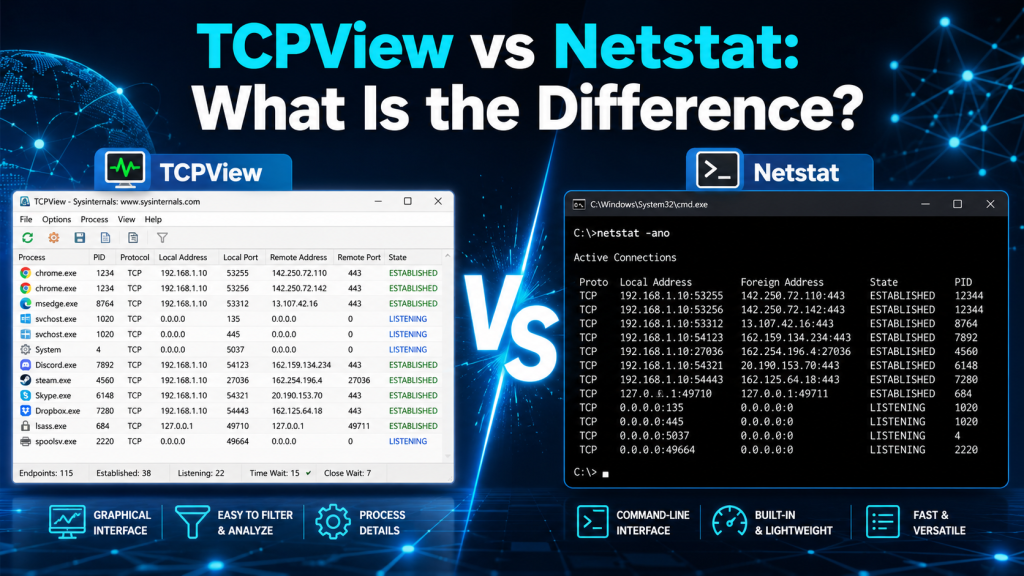
When you want to check network connections on a Windows computer, two common tools often come up: TCPView and Netstat. Both tools help you see what is happening with TCP and UDP connections, open ports, remote addresses, and network activity. However, they are not exactly the same.
The main difference between TCPView and Netstat is that TCPView gives you a visual, real-time interface, while Netstat is a command-line tool built into Windows. TCPView is easier for beginners because it shows connections in a clean window with process names and live updates. Netstat is better for users who prefer commands, scripts, and quick terminal-based checks.
Read More: How to Use TCPView to Monitor Network Connections?
What Is TCPView?
TCPView is a Windows network monitoring tool from Microsoft Sysinternals. It displays active TCP and UDP endpoints on your computer in a graphical interface. This means you can see which programs are using the internet, which local ports are open, which remote addresses are connected, and what state each TCP connection is in.
TCPView is especially useful when you want to quickly identify which application is making a network connection. Instead of only showing port numbers, TCPView also shows the process name, making it easier to understand what is happening.
For example, if you see an unknown connection on your system, TCPView can help you check which program owns that connection. This makes it helpful for troubleshooting, network monitoring, and basic security checks.
What Is Netstat?
Netstat stands for “network statistics.” It is a built-in command-line tool available in Windows and many other operating systems. On Windows, you can run Netstat from Command Prompt or PowerShell to view active connections, listening ports, protocol statistics, and routing information.
Netstat is useful because it does not require downloading anything. It is already available on Windows systems.
You simply open Command Prompt and run commands like:
netstat -ano
This command shows active connections, listening ports, addresses, connection states, and process IDs. However, Netstat does not provide a modern visual interface. You need to understand the command output and match process IDs manually if you want to know which program is using a port.
TCPView vs Netstat: Quick Comparison Table
| Feature | TCPView | Netstat |
|---|---|---|
| Interface | Graphical user interface | Command-line interface |
| Built into Windows | No, separate Sysinternals tool | Yes, built into Windows |
| Shows active connections | Yes | Yes |
| Shows TCP and UDP endpoints | Yes | Yes |
| Shows process names | Yes, directly | Usually requires extra checking |
| Real-time updates | Yes | Only with interval command |
| Beginner-friendly | Very easy | Moderate |
| Best for scripting | Not ideal | Excellent |
| Best for visual monitoring | Excellent | Not ideal |
| Requires installation/download | Portable download | No download needed |
Key Difference Between TCPView and Netstat
The key difference is how the information is presented.
TCPView presents network activity in a visual window. You can open it and immediately see which processes are connected to which local and remote addresses. It updates automatically, so you can watch connections appear and disappear in real time.
Netstat presents network information as text in the command line. It is powerful, lightweight, and useful for advanced users, but it may look confusing for beginners. You often need to use extra commands to match process IDs with application names.
In simple words:
TCPView is easier to read. Netstat is better for command-line control.
How TCPView Works
TCPView scans your system’s active TCP and UDP endpoints and displays them in a table.
Each row usually includes useful details such as:
- Process name
- Process ID
- Protocol
- Local address
- Local port
- Remote address
- Remote port
- Connection state
This makes TCPView very practical when you want to know which app is using your network. For example, if a browser, downloader, game client, or background service is making a connection, TCPView can show it clearly.
One of the best things about TCPView is that it updates automatically. You do not need to keep running the same command again and again. This makes it useful for live monitoring.
How Netstat Works
Netstat works through command-line options. Different options show different types of network information.
For example:
netstat
This shows active TCP connections.
netstat -a
This shows all active connections and listening ports.
netstat -n
This shows addresses and port numbers in numerical form.
netstat -o
This shows the process ID related to each connection.
netstat -ano
This is one of the most useful combinations because it shows all connections, numerical addresses, and process IDs.
Netstat is powerful, but the output can be harder to read if you are not familiar with networking terms.
TCPView Advantages
TCPView has several advantages, especially for users who want a simple and visual way to monitor network connections.
Easy to Use
TCPView is much easier for beginners. You do not need to memorize commands. You just open the tool and view the network activity.
Shows Process Names Clearly
One major advantage of TCPView is that it displays the process name directly. This helps you quickly understand which application is responsible for a connection.
Real-Time Monitoring
TCPView updates live, so you can watch new connections appear and old connections disappear. This is helpful when troubleshooting apps, browsers, download tools, or suspicious network activity.
Better for Visual Analysis
Because TCPView uses a graphical interface, it is easier to scan, sort, and review network connections.
Netstat Advantages
Netstat also has strong advantages, especially for advanced users and administrators.
Built Into Windows
You do not need to download anything. Netstat is already available in Windows, which makes it convenient for quick checks.
Good for Scripts and Automation
Netstat is better when you want to include network checks in scripts, logs, or automated troubleshooting workflows.
Works Well on Servers
System administrators often prefer command-line tools on servers because they are fast, lightweight, and easy to run remotely.
Provides Extra Network Statistics
Netstat can show more than just active connections. It can also display protocol statistics and routing table information, depending on the command options used.
Which Tool Is Better for Beginners?
For beginners, TCPView is usually better. Its visual interface makes it easier to understand network activity without learning many commands.
If you only want to know which program is using the internet or which port is open, TCPView gives you the answer quickly. You can see the process name, local address, remote address, and connection status in one place.
Netstat is still useful, but beginners may find the command output confusing at first.
Which Tool Is Better for Advanced Users?
For advanced users, Netstat is often better for quick command-line checks. It is especially useful for system administrators, network technicians, and users who need scripting support.
For example, if you are working on a remote server or writing a troubleshooting script, Netstat can be more practical than TCPView.
However, many advanced users still use TCPView because it gives a faster visual overview.
TCPView vs Netstat for Security Checks
Both TCPView and Netstat can help with basic security checks, but TCPView is more user-friendly for identifying suspicious connections.
With TCPView, you can quickly see which process is connected to a remote address. If you notice an unknown process making repeated network connections, you can investigate further.
With Netstat, you can also find suspicious connections, but you may need to match the process ID with Task Manager or another command. This adds an extra step.
For simple security monitoring, TCPView is easier. For deeper investigation and logging, Netstat can be more flexible.
TCPView vs Netstat for Troubleshooting Ports
If an application is not working because a port is already in use, both tools can help.
TCPView makes it easier to visually find the port and process. You can sort by local port and quickly identify which application is using it.
Netstat can also do this with commands like:
netstat -ano
After that, you can match the process ID with Task Manager to find the application.
So, for quick visual troubleshooting, TCPView is better. For command-line troubleshooting, Netstat is better.
TCPView vs Netstat for Real-Time Monitoring
TCPView is better for real-time monitoring because it refreshes automatically and displays changes visually.
Netstat can also refresh output if you use an interval, but it is not as clean or easy to follow. For example, you can run Netstat with an interval to repeat the output, but the command-line view is still less comfortable for live monitoring.
If you want to watch network activity as it happens, TCPView is the better choice.
When Should You Use TCPView?
You should use TCPView when:
- You want a simple visual tool
- You want to see process names easily
- You want real-time connection updates
- You are checking which app is using the internet
- You are troubleshooting open ports
- You want a beginner-friendly network monitoring tool
TCPView is ideal for normal users, IT learners, support technicians, and anyone who wants quick answers without typing commands.
When Should You Use Netstat?
You should use Netstat when:
- You prefer command-line tools
- You are working on a server
- You want to run quick commands
- You need scripting or automation
- You want routing or protocol statistics
- You do not want to download extra tools
Netstat is best for administrators, advanced users, and technical troubleshooting workflows.
Is TCPView a Replacement for Netstat?
TCPView can replace Netstat for many common tasks, especially when you only need to view active TCP and UDP connections. It is easier to read and more convenient for visual monitoring.
However, TCPView does not fully replace Netstat in every situation. Netstat is still useful for command-line work, automation, routing information, and protocol statistics.
So, the best answer is: TCPView is a better visual alternative for connection monitoring, but Netstat is still valuable for command-line network diagnostics.
TCPView vs Netstat: Which One Should You Choose?
Choose TCPView if you want a simple, visual, and beginner-friendly way to monitor active network connections.
Choose Netstat if you want a built-in command-line tool for quick checks, scripts, server troubleshooting, or network statistics.
For most everyday users, TCPView is easier. For technical users, Netstat is more flexible. In many cases, using both tools together gives the best result.
Conclusion
TCPView and Netstat both help you understand network connections, but they are designed for different types of users.TCPView is best when you want a clear graphical view of TCP and UDP endpoints, process names, ports, and connection states. It is easier to use and better for real-time monitoring.Netstat is best when you need a built-in command-line tool for active connections, listening ports, protocol statistics, routing information, and automation.