
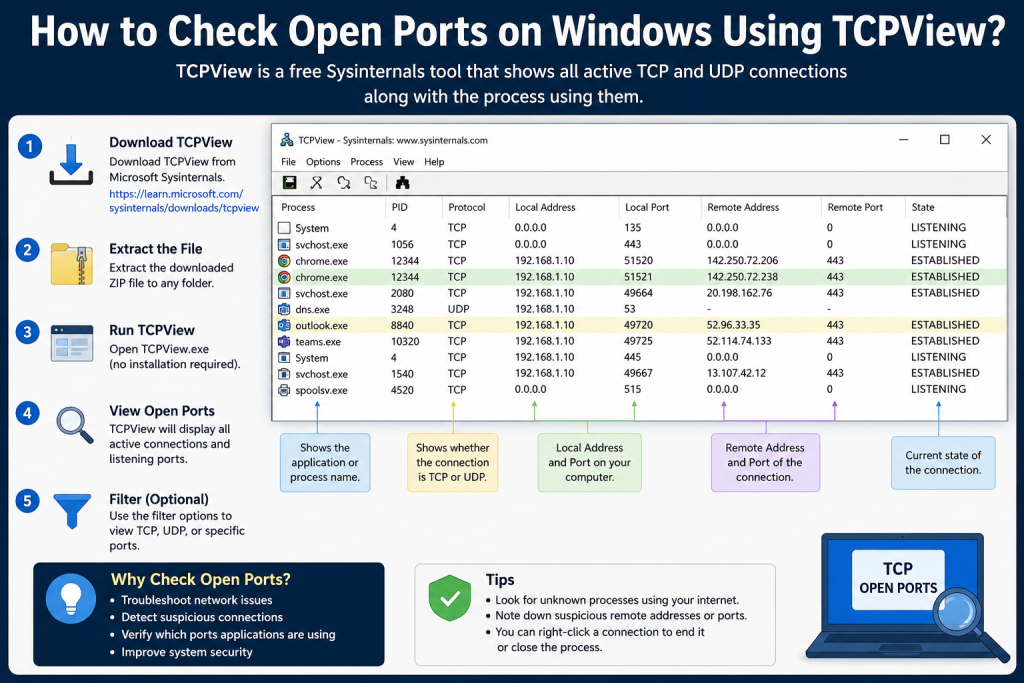
Checking open ports on Windows is one of the easiest ways to understand what is happening on your network. If your internet feels slow, an app is not connecting, or you want to see which programs are using network connections, TCPView can help. TCPView is a free Windows utility from Microsoft Sysinternals that shows active TCP and UDP connections in a simple graphical interface.
In this guide, you will learn how to check open ports on Windows using TCPView, how to understand the results, and how to identify which programs are using specific ports.
Read More: TCPView vs Netstat: What Is the Difference?
What Is TCPView?
TCPView is a lightweight network monitoring tool for Windows. It shows a live list of TCP and UDP endpoints running on your computer. In simple words, it helps you see which apps and services are using network ports.
Instead of typing commands in Command Prompt, TCPView gives you a visual table where you can quickly check:
- Process name
- Process ID
- Protocol type
- Local address
- Local port
- Remote address
- Remote port
- Connection state
This makes TCPView very useful for beginners, IT users, network admins, and anyone who wants to monitor open ports on Windows without using complicated commands.
Why Check Open Ports on Windows?
Open ports are communication points used by apps and services. For example, a browser, messaging app, game launcher, database server, or remote desktop tool may use ports to send and receive data.
Checking open ports can help you:
- Find which program is using a specific port
- Troubleshoot network connection problems
- Detect unknown or suspicious connections
- Check if a server app is listening correctly
- Understand how your system communicates online
- Improve basic Windows security monitoring
Not every open port is dangerous. Many open ports are normal because Windows and installed apps need them. The important thing is knowing which process owns the port and whether it looks trusted.
How to Download TCPView Safely
To use TCPView safely, always download it from the official Microsoft Sysinternals website. Avoid downloading it from random third-party websites because modified tools can create security risks.
TCPView usually comes as a ZIP file. After downloading it, extract the ZIP folder and run the correct executable file for your system.
You may see files such as:
- TCPView.exe
- TCPView64.exe
- Tcpvcon.exe
For most modern Windows computers, TCPView64.exe is the best option because many systems are 64-bit.
How to Check Open Ports on Windows Using TCPView
Follow these simple steps to check open ports on Windows using TCPView.
Step 1: Download and Extract TCPView
First, download TCPView from Microsoft Sysinternals. After the download is complete, right-click the ZIP file and select “Extract All.” Choose a folder where you want to keep the tool.
TCPView does not need a full installation. You can run it directly after extracting the files.
Step 2: Run TCPView as Administrator
Right-click TCPView64.exe or TCPView.exe and select “Run as administrator.”
Running it as administrator is helpful because it allows TCPView to show more complete process and connection details. Without admin rights, some system-level entries may not display properly.
Step 3: Accept the License Agreement
The first time you open TCPView, you may see a license agreement. Read it and click “Agree” to continue.
After that, TCPView will open and immediately start showing active network connections.
Step 4: Understand the TCPView Window
Once TCPView opens, you will see a table with several columns. Each row represents a network endpoint or connection.
Here are the most important columns:
Process
This column shows the name of the program or service using the connection. For example, you may see chrome.exe, msedge.exe, svchost.exe, or another app name.
PID
PID means Process ID. It is a unique number assigned to a running process. This is useful when multiple processes have the same name.
Protocol
This column shows whether the connection is using TCP or UDP. TCP is usually used for reliable connections, while UDP is often used for faster communication such as streaming, gaming, or DNS lookups.
Local Address
This is the address on your own computer. It may show your local IP address, localhost, or 0.0.0.0.
Local Port
This is the port number being used on your computer. This is one of the most important columns when checking open ports.
Remote Address
This shows the external or remote address your computer is connected to. If a program is communicating with a server online, the remote address can help you identify where it is connecting.
Remote Port
This is the port being used on the remote system.
State
This shows the current status of a TCP connection. Common states include LISTENING, ESTABLISHED, TIME_WAIT, and CLOSE_WAIT.
How to Find Listening Ports in TCPView
If you want to check open ports that are waiting for connections, look for rows where the state is “LISTENING.”
A LISTENING port means a program is waiting for incoming network traffic. For example, a local web server, database server, remote access tool, or development tool may listen on a port.
To find listening ports quickly:
- Open TCPView.
- Look at the “State” column.
- Find entries marked “LISTENING.”
- Check the “Local Port” column.
- Check the “Process” column to see which app owns the port.
This helps you answer a simple but important question: “Which program is keeping this port open?”
How to Find Which Program Is Using a Port
Sometimes you may need to know which app is using a specific port, such as port 80, 443, 3306, 5432, 8080, or 3389.
To check this in TCPView:
- Open TCPView as administrator.
- Click the “Local Port” column to sort by port number.
- Scroll until you find the port you want.
- Look at the “Process” column.
- Use the PID column if you need to confirm the exact process.
For example, if port 8080 is being used, TCPView can show whether it belongs to a browser, local server, development tool, or another application.
Common TCP Connection States in TCPView
When checking open ports on Windows using TCPView, you may see different connection states. Here is what they usually mean.
| State | Meaning |
|---|---|
| LISTENING | A program is waiting for incoming connections |
| ESTABLISHED | A connection is currently active |
| TIME_WAIT | A recently closed connection is waiting before fully closing |
| CLOSE_WAIT | The remote side closed the connection, but the local app has not fully closed it |
| SYN_SENT | Your computer is trying to start a connection |
| SYN_RECEIVED | A connection request was received and is being processed |
For most users, LISTENING and ESTABLISHED are the most important states to understand.
Difference Between Open Ports and Active Connections
Many beginners confuse open ports with active connections. They are related, but not exactly the same.
An open listening port means a program is waiting for possible connections. An active connection means your computer is currently connected to another system.
For example:
- A web server may show a LISTENING port.
- A browser may show ESTABLISHED connections.
- A recently closed connection may show TIME_WAIT.
TCPView helps you see all of these in one place.
How to Close a Connection in TCPView
TCPView also allows you to close a selected TCP connection. This can be useful for troubleshooting, but you should be careful.
To close a connection:
- Right-click the connection.
- Select “Close Connection.”
- TCPView will attempt to close that selected connection.
Do not close random system connections unless you understand what they are. Closing important connections may interrupt internet access, apps, downloads, or Windows services.
How to End a Process from TCPView
TCPView may also allow you to end a process. This can stop the program that is using the port.
To do this:
- Right-click the process.
- Select the option to end the process.
- Confirm only if you are sure.
Be careful with system processes such as svchost.exe. Ending the wrong process can cause Windows features or network services to stop working temporarily.
TCPView vs Netstat: Which One Is Better?
Windows already includes a command-line tool called netstat. Netstat can show open ports and active connections, but it is not as beginner-friendly as TCPView.
TCPView is better for users who want:
- A graphical interface
- Live updates
- Easier process identification
- Quick sorting by port, process, or address
- A simpler way to close connections
Netstat is still useful for advanced users, scripts, and command-line troubleshooting. However, for most users, TCPView is easier and faster.
TCPView Command-Line Option: Tcpvcon
TCPView also includes Tcpvcon, which is a command-line version of the tool. This is useful for users who prefer terminal-based output or want to include port checks in scripts.
For example, IT users may use Tcpvcon when they need quick network endpoint details without opening the graphical TCPView window.
Beginners should start with TCPView because the visual interface is easier to understand.
Tips for Reading TCPView Results Correctly
TCPView can show a lot of connections, especially if you have browsers, cloud apps, game launchers, or background services running. Here are some tips to read the results more clearly:
Sort by Local Port
Sorting by local port helps you find a specific port quickly.
Sort by Process Name
Sorting by process name helps you group all connections from the same app.
Look for Unknown Processes
If you see a process name you do not recognize, search the file name carefully and check its location before assuming it is harmful.
Check Remote Addresses
Remote addresses can show where a program is connecting. Some may belong to trusted services, cloud platforms, updates, or content delivery networks.
Do Not Panic Over TIME_WAIT
TIME_WAIT entries are common and usually normal. They often appear after connections close.
Is TCPView Safe to Use?
Yes, TCPView is safe when downloaded from Microsoft Sysinternals. It is a trusted diagnostic utility used for Windows troubleshooting and network monitoring.
However, like any system tool, it should be used carefully. Viewing connections is safe, but closing connections or ending processes can affect running apps.
When Should You Use TCPView?
You should use TCPView when:
- A port is already in use and you want to find the app
- A local server is not starting
- You want to check network activity
- You suspect an unknown app is connecting online
- You are troubleshooting firewall or connection issues
- You want a simpler alternative to netstat
TCPView is especially useful for developers, students, system administrators, and everyday Windows users who want a clear view of network activity.
Common Ports You May See on Windows
Here are some common port numbers you may see while checking open ports:
| Port | Common Use |
|---|---|
| 80 | HTTP web traffic |
| 443 | HTTPS secure web traffic |
| 53 | DNS |
| 3389 | Remote Desktop |
| 3306 | MySQL |
| 5432 | PostgreSQL |
| 8080 | Local web servers or proxy tools |
| 25 | SMTP email |
| 21 | FTP |
Seeing these ports does not always mean there is a problem. Always check which process is using the port.
Troubleshooting: TCPView Not Showing All Ports
If TCPView does not show all expected ports, try these fixes:
- Run TCPView as administrator
- Refresh the view
- Check if the app using the port is actually running
- Disable filters if any are applied
- Make sure you downloaded the latest version from Microsoft
- Restart TCPView after launching the target application
Some connections are very short-lived, so they may appear and disappear quickly.
Best Practices for Checking Open Ports
To use TCPView effectively, follow these best practices:
- Download only from the official Microsoft Sysinternals page
- Run as administrator for better visibility
- Learn the difference between LISTENING and ESTABLISHED
- Do not close unknown connections without checking them
- Investigate unfamiliar process names carefully
- Use Windows Firewall settings if you need to block unwanted access
- Keep your system and security software updated
Conclusion
TCPView is a simple and reliable tool for checking open ports on Windows. It helps you see active TCP and UDP connections, identify which processes are using specific ports, and understand whether a connection is listening, established, or recently closed. For beginners, TCPView is easier than command-line tools because it provides a clear visual interface with real-time network details.