
TCPView is a helpful Windows tool for checking active network connections on your computer. It shows which apps and processes are using TCP or UDP connections, along with details like local address, remote address, port number, process name, and connection state.
But sometimes, viewing the data inside TCPView is not enough. You may want to save or export TCPView connection data so you can review it later, share it with a technician, compare network activity, or keep a record for troubleshooting.
The good news is that TCPView makes it easy to save connection information. You can export the current TCPView list using the built-in Save option, or you can use Tcpvcon, the command-line version of TCPView, to export data in a more flexible format.
Read More: Why Is TCPView Showing Too Many Connections?
What Is TCPView Connection Data?
TCPView connection data is the network information shown inside the TCPView window. It helps you understand which programs are communicating through your network.
TCPView usually shows details such as:
- Process name
- Process ID
- Protocol type
- Local address
- Local port
- Remote address
- Remote port
- Connection state
This information is useful when you want to identify unknown connections, check app behavior, monitor background network activity, or troubleshoot connection problems.
Why Should You Save or Export TCPView Data?
Saving TCPView data can be helpful for many reasons. Instead of only looking at live connections, you can keep a copy and analyze it later.
You may want to export TCPView connection data when:
- You are troubleshooting suspicious network activity
- You want to share connection details with support
- You need to compare network activity before and after opening an app
- You are checking which processes use specific ports
- You want to document server or PC network behavior
- You are investigating unknown remote addresses
- You need a simple report for later review
TCPView updates in real time, so connections can appear and disappear quickly. Saving the data gives you a snapshot of what was happening at that moment.
How to Save TCPView Connection Data Using the Save Option
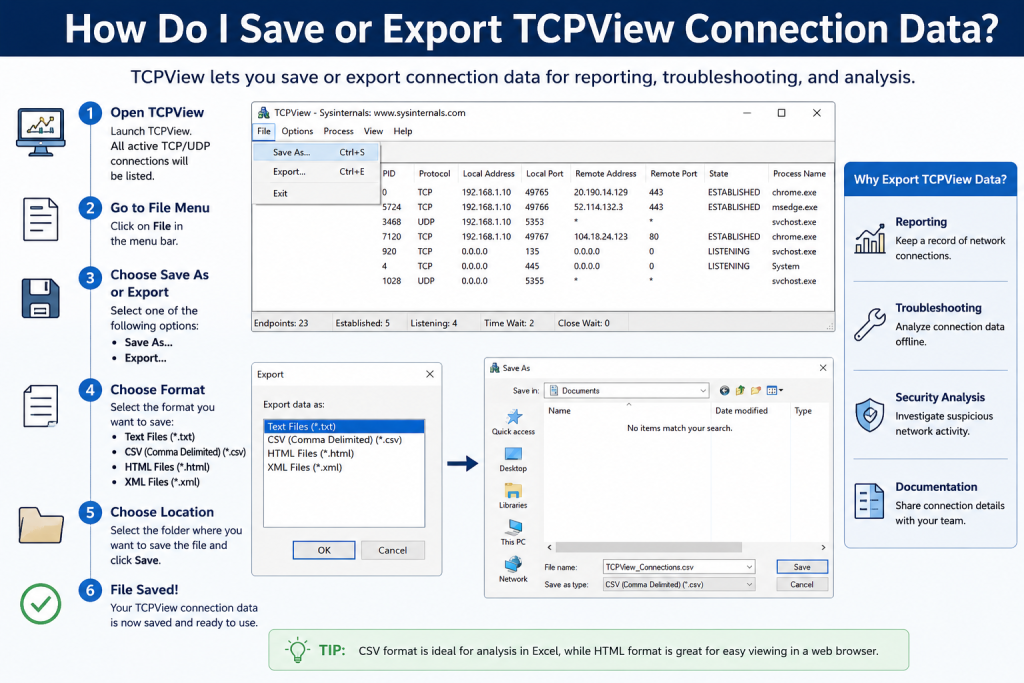
The easiest way to save TCPView connection data is by using the Save option inside the program.
Follow these steps:
- Open TCPView on your Windows computer.
- Wait for the connection list to load.
- Review the active TCP and UDP connections.
- Click the File menu.
- Select Save.
- Choose a location on your computer.
- Enter a file name.
- Save the file.
This will save the current TCPView output so you can open it later.
Best Time to Save TCPView Data
TCPView shows live network activity, so timing matters. If you save the data too early or too late, you may miss the connection you wanted to capture.
The best time to save TCPView data is when:
- The suspicious connection is visible
- The app you are testing is running
- The network issue is happening
- The unknown process is active
- The connection state is still shown
For example, if you are checking why a browser creates many connections, open the browser first, load the website, then save the TCPView output.
How to Export TCPView Data Using Tcpvcon
TCPView also includes Tcpvcon, which is the command-line version of TCPView. This is useful if you want to export connection data from Command Prompt or use it in scripts.
Tcpvcon is helpful for users who want a more technical export method.
A common command looks like this:
tcpvcon -a -c -n > connections.csvThis command exports connection data into a CSV file named connections.csv.
Here is what the options mean:
| Option | Meaning |
|---|---|
-a | Shows all endpoints |
-c | Outputs data in CSV format |
-n | Does not resolve addresses |
> | Saves the output to a file |
The CSV format is useful because you can open it in Excel, Google Sheets, or another spreadsheet tool.
Why Use CSV Export?
CSV export is useful when you want to organize and filter TCPView data more easily.
With a CSV file, you can:
- Sort connections by process name
- Filter by remote address
- Search for a specific port
- Compare different exports
- Share clean data with support teams
- Create simple troubleshooting records
For example, if you want to find all connections made by one app, you can open the CSV file in Excel and filter the process column.
Save Option vs Tcpvcon Export
Both methods are useful, but they are better for different situations.
| Method | Best For |
|---|---|
| TCPView Save option | Quick manual saving |
| Tcpvcon command | CSV export and scripting |
| CSV file | Spreadsheet analysis |
| Manual save | Simple troubleshooting |
| Command-line export | Advanced users and repeated checks |
If you only need a quick record, use the Save option. If you want structured data for filtering or reports, use Tcpvcon with CSV output.
How to Save TCPView Data for Troubleshooting
If you are saving TCPView data for troubleshooting, try to capture the connection at the right moment.
Use this simple process:
- Restart TCPView.
- Open the app or website you want to test.
- Wait for the connection issue to appear.
- Save the TCPView output.
- Export again after closing the app.
- Compare both files.
This can help you understand which connections were created by that specific app or website.
How to Export Data for a Specific Process
Tcpvcon can also be used with a process name or process ID. This helps when you only want connection data for one program.
For example, you may want to check browser connections only:
tcpvcon chrome.exeOr you may want to check a specific process ID:
tcpvcon 1234This makes the output cleaner because you do not have to search through every connection manually.
How to Make TCPView Data Easier to Read
TCPView data can sometimes look confusing, especially if there are many active connections.
To make the exported data easier to understand, try these tips:
- Close unnecessary apps before saving
- Save data while the issue is happening
- Use CSV format for sorting and filtering
- Focus on unknown processes first
- Check remote addresses carefully
- Compare data before and after opening an app
- Use process IDs to match connections with Task Manager
A clean export is much easier to analyze than a crowded one.
What File Format Should You Use?
For normal users, the built-in Save option is usually enough. It saves the visible output and lets you review it later.
For advanced users, CSV export is better because it works well with spreadsheets. It also makes searching, sorting, and filtering much easier.
Use CSV when you want to:
- Analyze many connections
- Filter by process
- Create reports
- Compare connection snapshots
- Share structured data
Can You Automatically Save TCPView Data?
TCPView itself is mainly a live viewing tool, but Tcpvcon can be used in scripts to save connection data automatically.
For example, you can run Tcpvcon from Command Prompt and redirect the output to a file. Advanced users can also use scheduled tasks or batch files to save network snapshots at different times.
This is useful for monitoring a connection issue that happens randomly.
Common Mistakes When Exporting TCPView Data
Saving Too Late
Network connections can close quickly. If you save after the connection disappears, the exported file will not include it.
Not Running as Administrator
Some process details may not appear correctly if TCPView is not running with proper permissions. Running it as administrator can help show more complete information.
Confusing Local and Remote Addresses
The local address belongs to your computer. The remote address belongs to the server or device your computer is connecting to. Understanding this difference is important when analyzing exported data.
Ignoring Process Names
The process name is one of the most important parts of TCPView data. It tells you which app is responsible for the connection.
Not Using CSV for Large Data
If you have many connections, a normal saved file may be harder to read. CSV format is better for large exports because you can open it in a spreadsheet.
Is Exported TCPView Data Safe to Share?
TCPView data can include technical details about your computer’s network activity. It may show process names, local ports, remote addresses, and connection states.
Before sharing exported TCPView data publicly, review it carefully. If you are sending it to a trusted technician or support team, it is usually okay, but avoid posting it openly online without checking the contents.
You may want to hide:
- Public IP address
- Internal network details
- Personal app names
- Sensitive server addresses
- Company-related network information
How to Use Exported TCPView Data for Security Checks
Exported TCPView data can help you look for suspicious network activity.
Check for:
- Unknown process names
- Strange remote addresses
- Repeated connections to unknown servers
- Apps connecting when they should be closed
- Unusual listening ports
- Processes running from suspicious folders
TCPView is not a complete malware scanner, but exported data can help you notice unusual patterns.
Conclusion
Saving or exporting TCPView connection data is simple and useful. You can use the built-in Save option for a quick snapshot, or you can use Tcpvcon to export connection data in CSV format for deeper analysis.
If you are troubleshooting a network issue, save the data while the issue is happening. If you want to analyze many connections, use CSV so you can sort and filter the results easily.
TCPView is most powerful when you use it carefully. Focus on the process name, remote address, port number, and connection state. These details can help you understand what your computer is doing on the network and whether the activity looks normal or suspicious.